
View, track, and manage key activations across all devices and instances.
Viewing Activations
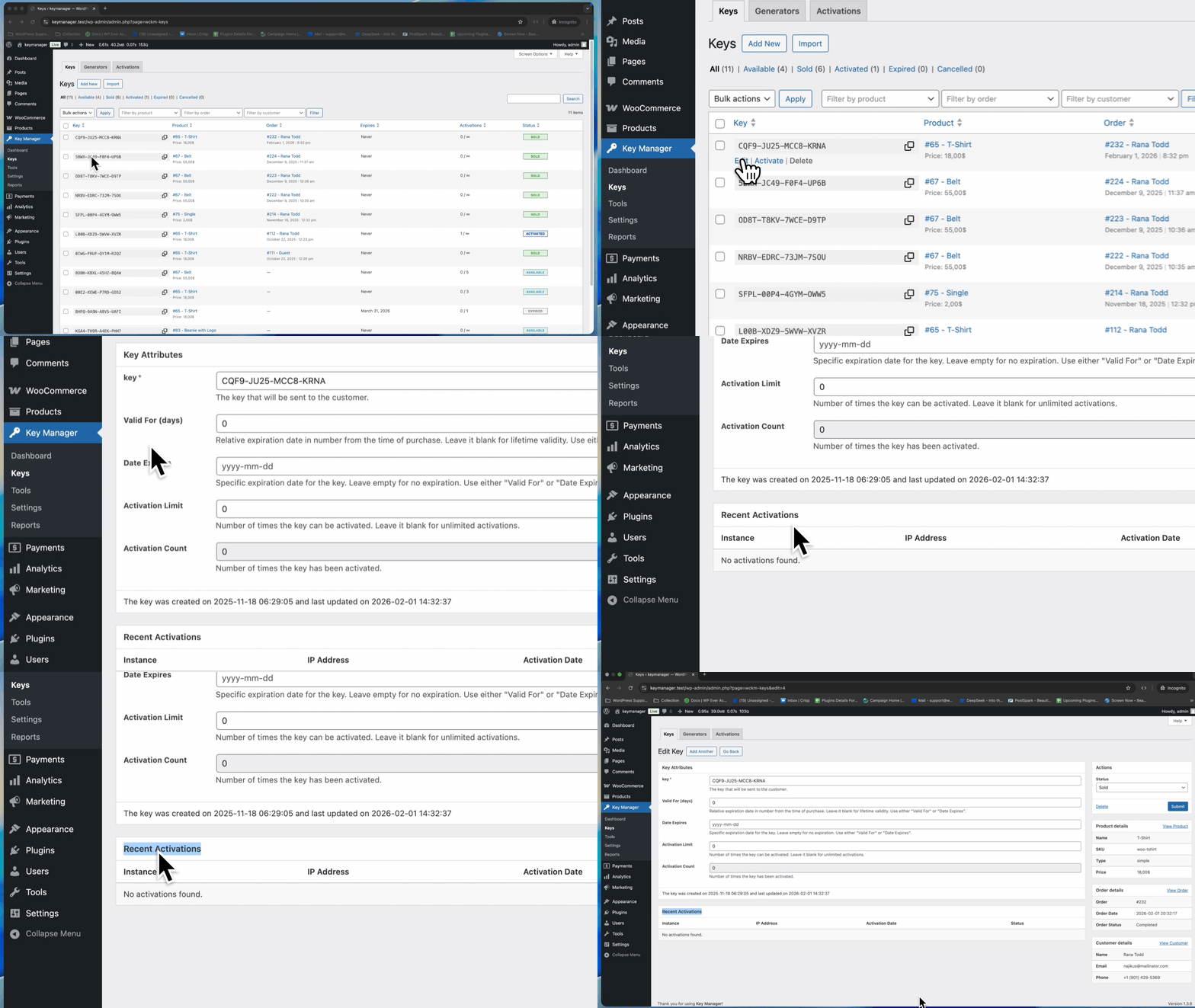
From Key Edit Page
- Go to Key Manager > Keys
- Edit the key
- See all activations for this key
Shows:
- Instance name (device/server identifier)
- IP address
- Activation date
- Status (active or inactive)
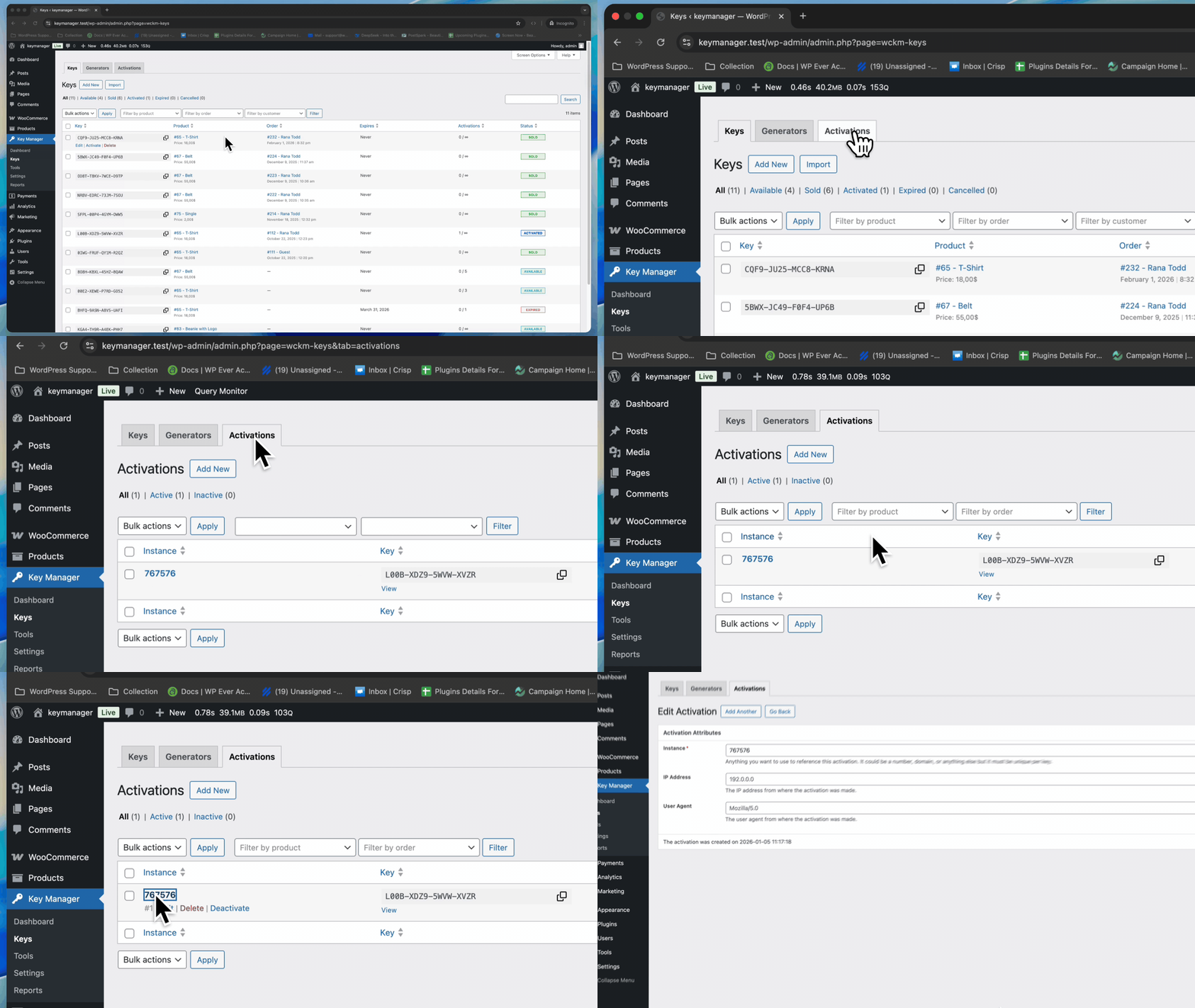
From Activations List
- Go to Key Manager > Keys > Activations
- See every activation across all keys
- Filter and search
Best for: Spotting unusual patterns, finding specific IPs
Activation Data
| Field | Description | Examples |
| Instance | Device/server identifier | production.example.com, DESKTOP-ABC123 |
| IP Address | IP of activation | 192.168.1.1, 10.0.0.50 |
| User Agent | Software or browser | MyPlugin/1.5.0, WordPress/5.0 |
| Status | Current state | Active, Inactive |
Instance Types
Domain-Based:
- example.com
- subdomain.example.com
- Used for: WordPress plugins, web apps
IP-Based:
- 192.168.1.100
- 10.0.0.50
- Used for: Network devices, servers
Hostname-Based:
- DESKTOP-ABC123
- MacBook-Pro
- Used for: Desktop software, mobile apps
User-Defined:
- production-server
- office-computer
- Used for: Custom installations
Deactivating Activations
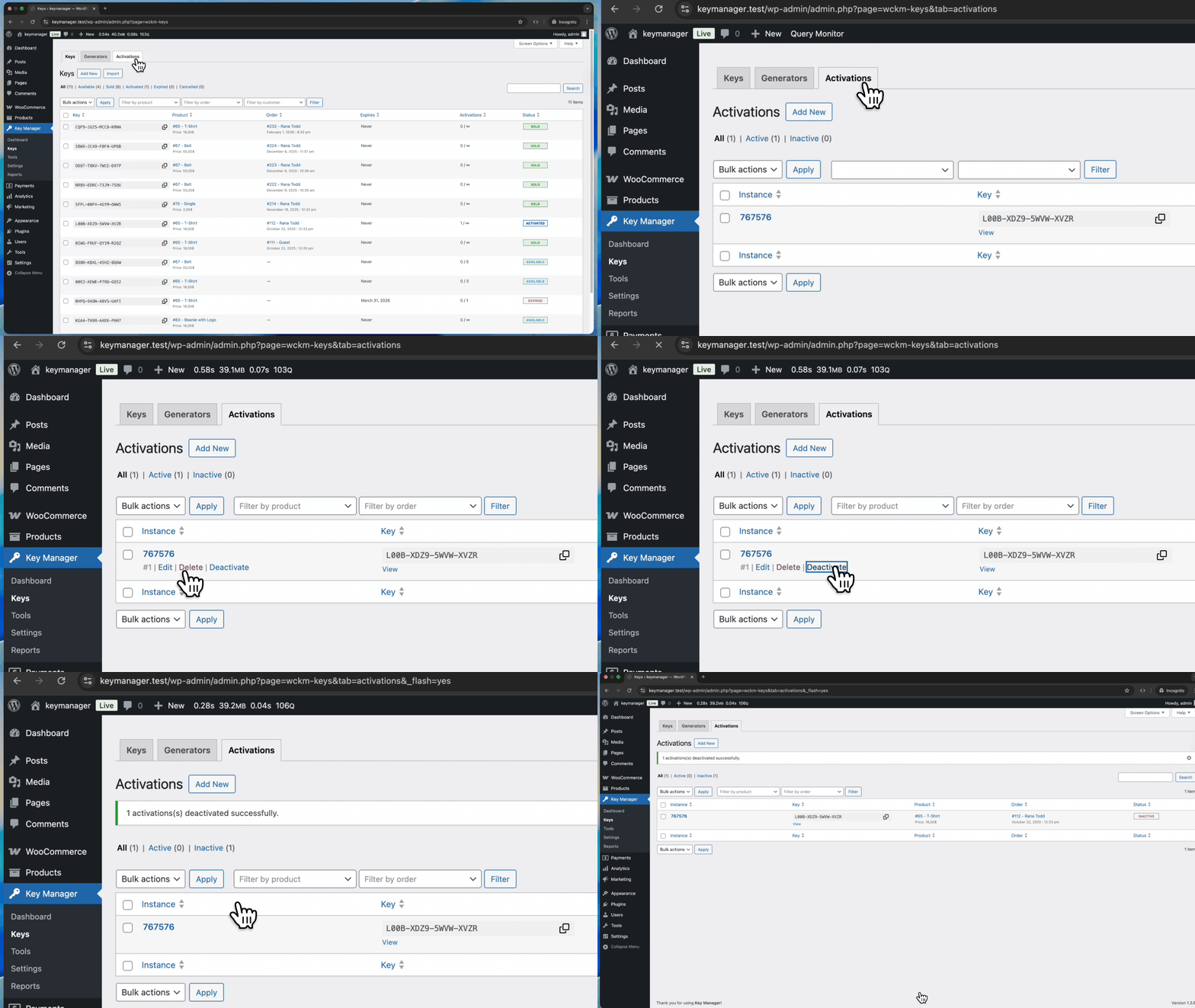
Single Deactivation
- Go to Key Manager > Keys > Activations
- Find Deactivate button
- Click Deactivate
Activation count decreases by 1.
Bulk Deactivation
- Go to Key Manager > Keys > Activations
- Select multiple activations
- Select Deactivate from Bulk Actions
- Apply
All selected activations deactivated.