
Adding QR codes and barcodes makes license keys easier to scan, share, and validate. Customers can quickly access their keys, while you maintain better control and security.
How to find the settings:
Go to Key Manager → Settings → MISC → QR and Barcode Settings
Here, you can adjust how keys appear on the key details page, order details page, and in emails.
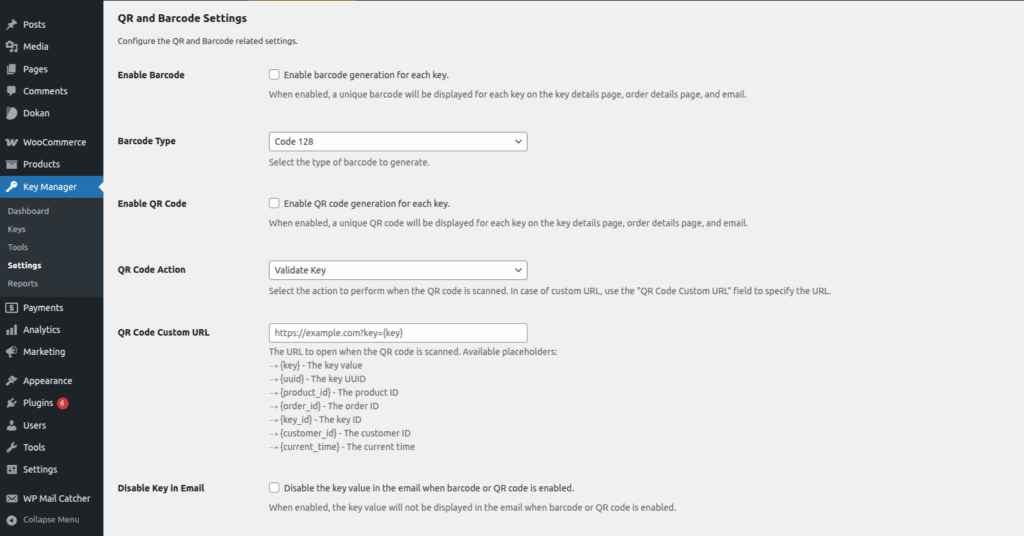
Enable Barcode
Turn this on to generate a unique barcode for every key.
Shown on the key details page, order details page, and in emails.
Useful for quick scanning without typing the key.
Barcode Type
Choose the barcode format.
Default: Code 128 (widely supported and works for most cases).
Pick another type only if your scanner requires it.
Enable QR Code
Turn this on to generate a unique QR code for every key.
Displayed on the key details page, order details page, and in emails.
More flexible than barcodes because QR codes can store links and actions.
QR Code Action
Decide what happens when a QR code is scanned:
- Validate Key – Confirms if the key is valid.
- Custom URL – Sends users to your chosen link (set below).
QR Code Custom URL
If you select Custom URL, enter the link here.
You can add placeholders to pass data:
| Placeholder | Replaced With |
|---|---|
{key} | License key value |
{uuid} | Key UUID |
{product_id} | Product ID |
{order_id} | Order ID |
{key_id} | Key ID |
{customer_id} | Customer ID |
{current_time} | Current time |
Example:
https://example.com/activate?key={key}&order={order_id}Disable Key in Email
Hide the plain key in customer emails when barcodes or QR codes are enabled.
- Only the barcode or QR code will show.
- Adds security by preventing copy-paste of keys.