If you’re a vendor looking to sell digital products with license keys, WC Key Manager makes it simple to assign and deliver keys automatically. You can enable this directly while creating or editing any product in your Dokan Vendor Dashboard.
This guide will show you how to enable the “Sell Keys” option and configure key delivery settings.
Step 1: Login to Your Vendor Dashboard
- Go to your website’s login page.
- Log in with your vendor account credentials.
- You’ll be redirected to your Dokan Vendor Dashboard.
Step 2: Add or Edit a Product
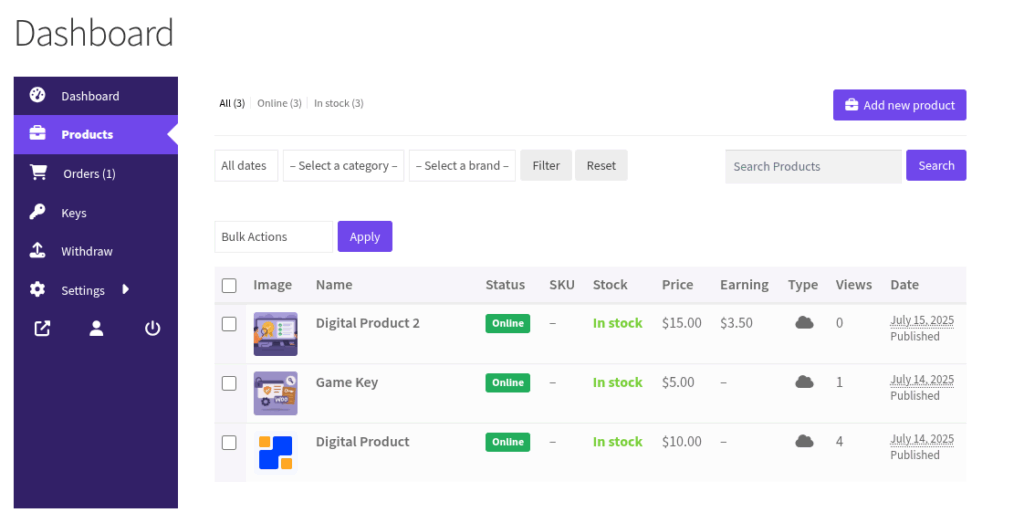
- From the sidebar, click on “Products”.
- To create a new product, click “Add New Product”.
- OR –
- To update an existing one, click “Edit” next to the product you want to modify.
Step 3: Enable the “Sell Keys” Option
Once you’re in the product creation or edit screen:
- Scroll down to find the “Sell Keys” section.
- Check the box that says: “Sell keys for this product.”
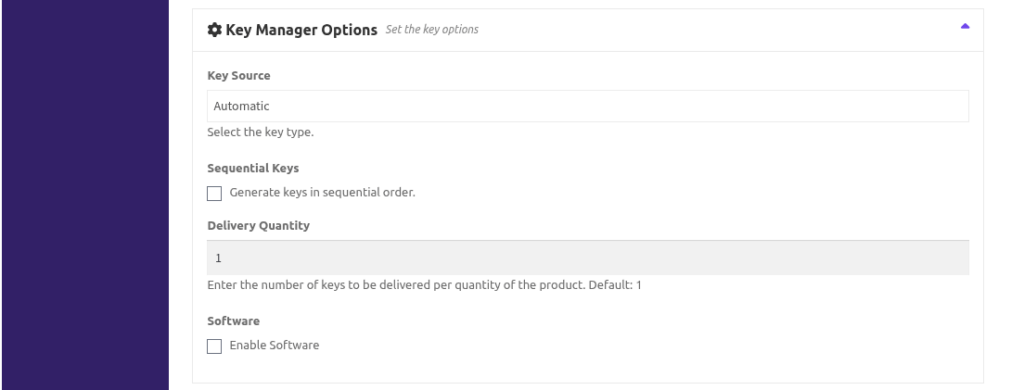
This will expand a new section called Key Manager Options, where you can configure how keys will be delivered.
Step 4: Configure Key Delivery Options
Here are the options you’ll see under Key Manager Options:
Key Source
Choose how the license keys will be generated or assigned.
Automatic
- Uses the admin-configured automatic key generation rules.
- Great for software or product codes that follow a specific pattern.
Preset
Uses manually pre-added keys that you (the vendor) have uploaded or added via the Key menu.
Read More: How Vendors Can Add Keys from Their Dokan Dashboard
Sequential Keys
- Optionally enable this to generate keys in sequential order when using automatic key generation.
- Useful for structured key formats like: KEY-001, KEY-002, KEY-003, etc.
Delivery Quantity
- Default:
1 - Defines how many keys are delivered per product quantity ordered.
- Example: If you set it to
2and a customer buys 3 units, they’ll receive 6 keys in total.
Software (Optional)
- Enable this if your product is linked to software activation features (only used if the site admin has configured this).
- In most cases, you can leave this unchecked unless instructed.
Step 5: Save the Product
After configuring all options:
Click “Save Product” if you’re adding a new one.
Your product is now key-enabled and ready to deliver license keys automatically upon purchase.