
WC Key Manager provides seamless integration with WooCommerce Subscriptions, allowing you to manage software license keys for recurring products. This includes automatic renewal of license keys based on subscription status, giving store owners and customers a hassle-free license lifecycle experience.
This guide will walk you through the process of enabling license key renewal for WooCommerce Subscriptions using WC Key Manager.
Key Renewal with Subscriptions
When customers purchase a subscription product, WC Key Manager can automatically renew the associated license key upon each successful renewal of the WooCommerce Subscription. This ensures that customers retain access to the product or service without manually updating their license key.
Requirements
To use this feature, ensure the following:
- WooCommerce Subscriptions plugin is installed and active.
- WC Key Manager is installed, activated, and properly configured.
- Products using subscriptions are configured to generate or attach license keys through WC Key Manager.
How to Enable Key Renewal for Subscriptions
To enable license key renewal with WooCommerce Subscriptions in WC Key Manager, follow these steps:
Navigate to WC Key Manager Settings
- From your WordPress dashboard, go to
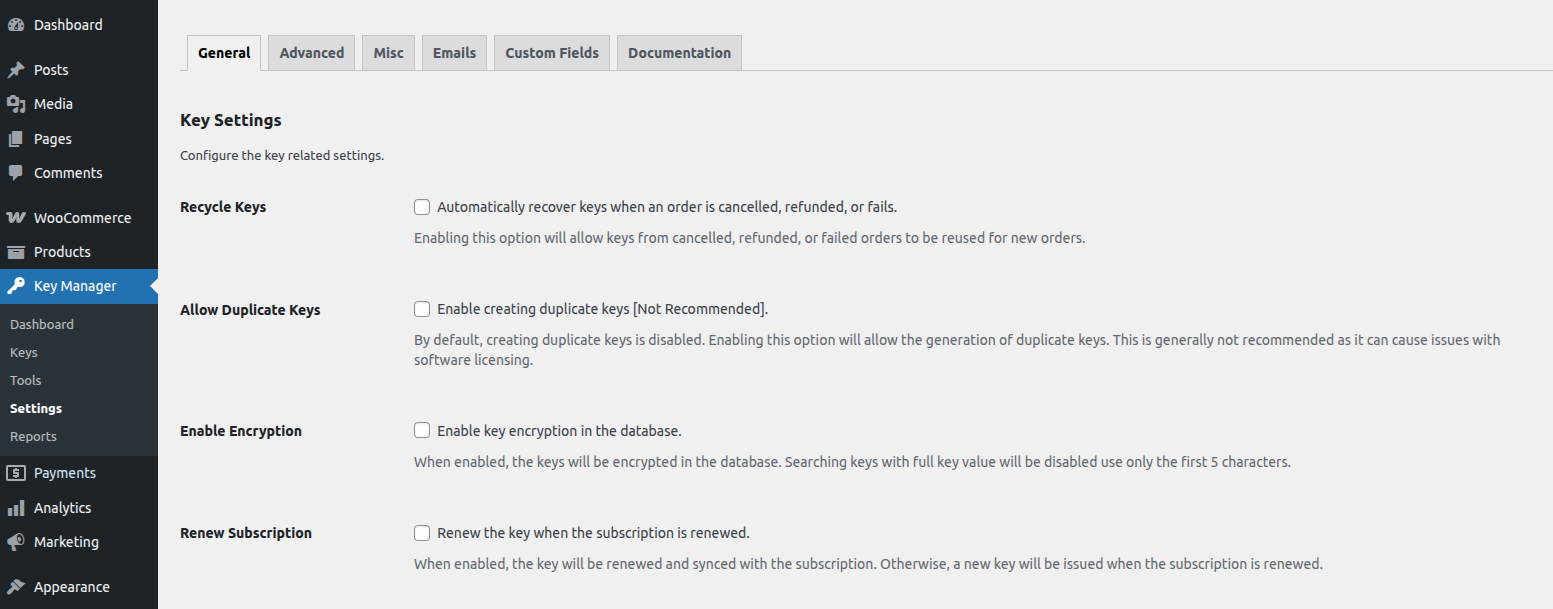
Key Manager > Settings > General
Enable the Renewal Option
- Look for the “Renew Subscription” option under the General settings tab.
- Check the box to Enable key renewal for subscriptions. This setting ensures that every time a subscription is renewed, the related license key is also automatically renewed.
Save Settings
- Click Save Changes to apply the new setting.
How to Enable Subscription Product Keys
If you are selling subscription-based products (using WooCommerce Subscriptions), WC Key Manager lets you automatically generate and deliver license keys for those products. This ensures that every subscription order comes with a valid license key that can renew or expire alongside the subscription.
Steps to Enable Keys for a Subscription Product
Go to Your Product
- From your WordPress dashboard, navigate to Products > All Products.
- Open the subscription product you want to enable keys for.
Enable Key Generation
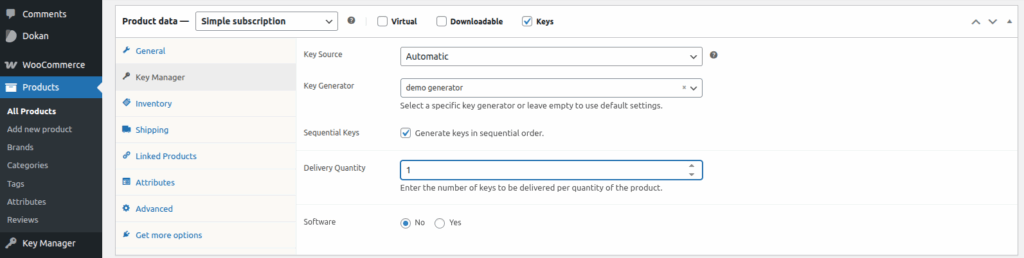
- Scroll down to the Product Data section.
- Click on the Key Manager tab (located in the left menu of the Product Data box).
- Check the option “Keys” to turn on key generation for this product.
Configure Key Settings
After enabling keys, you can configure additional settings such as:
- Key Generation Rules – Define whether keys are auto-generated or manually assigned.
- Key Sources – Select the key source.
- Delivery Quantities – Choose how many keys you want to send.
Save Your Changes
Once configured, click Update (or Publish, for new products) to save your settings.
How It Works
Once enabled:
- When a subscription product that includes a license key is renewed, WC Key Manager will automatically update the license expiration date based on the new billing cycle.
- Customers will not need to manually request a new license key or contact support.
- The license will remain active as long as the subscription is active and successfully renewed.