
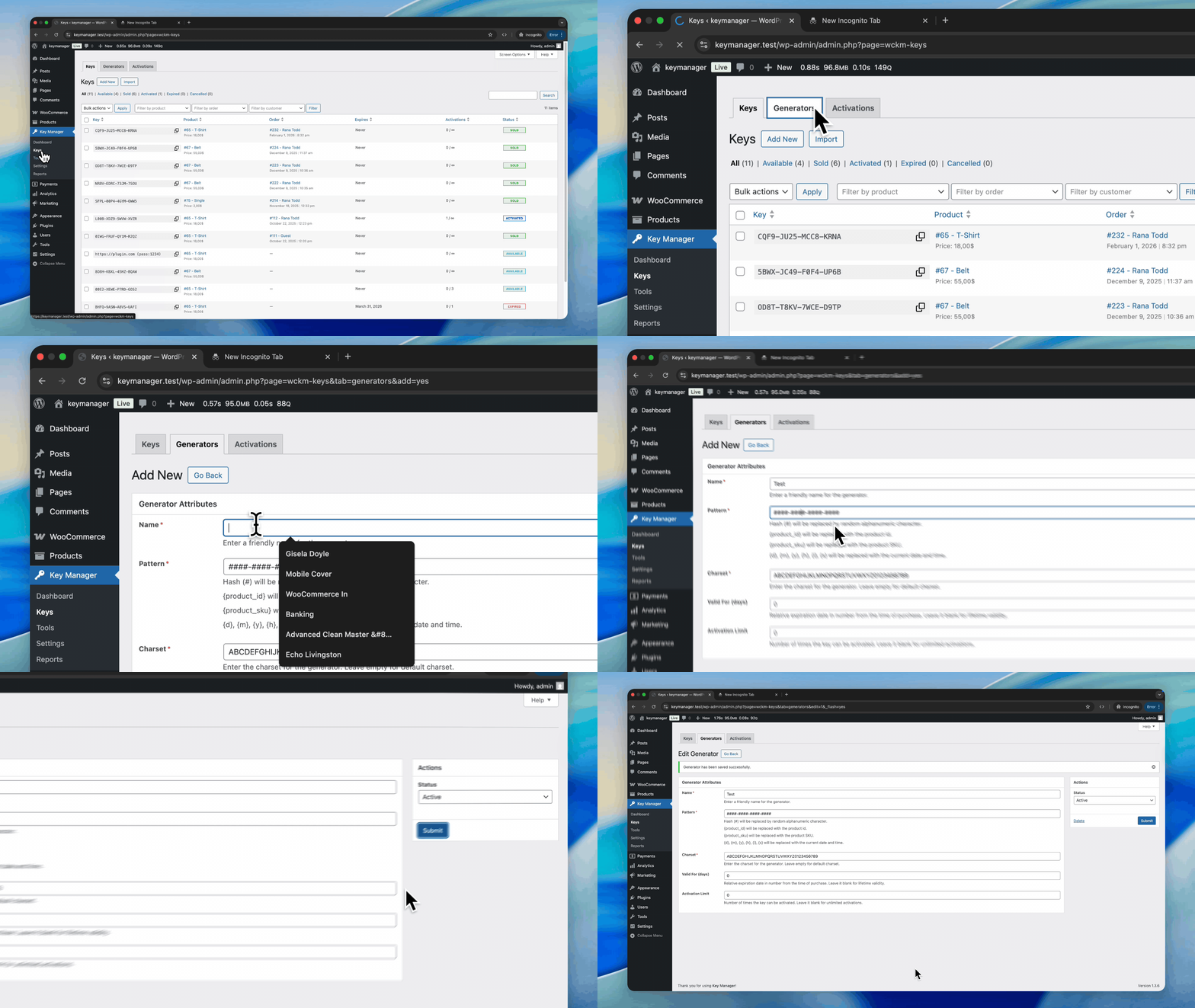
Custom Key Formats
Generator Patterns
Patterns define how keys are generated using simple placeholders.
Pattern Placeholders
| Placeholder | What It Does | Example Output |
| {#} | Will be replaced by random alphanumeric character. | A-Z, 0-9 |
| {product_id} | Will be replaced with the product ID. | 572543 |
| {product_sku} | Will be replaced with the product SKU. | SKU9237 |
| {d}, {m}, {y}, {h}, {i}, {s} | Will be replaced with the current date and time. | 10/01/2026 |
Creating Generator
New Generator:
- Go to Key Manager > Keys > Generators > Add New
- Enter generator name
- Find Pattern field
- Type pattern from supported placeholders (Required)
- Set Charset (Required)
- From Actions select “Status” Active or Inactive
- Submit
Edit Existing Generator:
- Go to Key Manager > Keys > Generators > [Select Existing Generator]
- Edit generator
- Update Pattern field
- Update
Note: Changing pattern only affects future keys – existing keys stay unchanged.
Key Encryption (Pro Only)
What Is Key Encryption?
Encryption protects keys by scrambling them in the database so they’re unreadable to unauthorized users.
Without Encryption:
Database stores: ABCD-1234-EFGH-5678
With Encryption:
Database stores: U2FsdGVkX1+7dKf9… (unreadable)
You see: ABCD-1234-EFGH-5678 (automatically decrypted)
How Encryption Works
When Key Is Created:
- Key generated or assigned
- Automatically encrypted before saving to database
- Encrypted key stored
When You View Keys:
- Key loaded from database
- Automatically decrypted (First 5 character)
- You see normal, readable key
- Customer sees normal key in email
During API Validation:
- Customer’s software submits key
- Compared against encrypted version
- Validation succeeds
- Process completely transparent
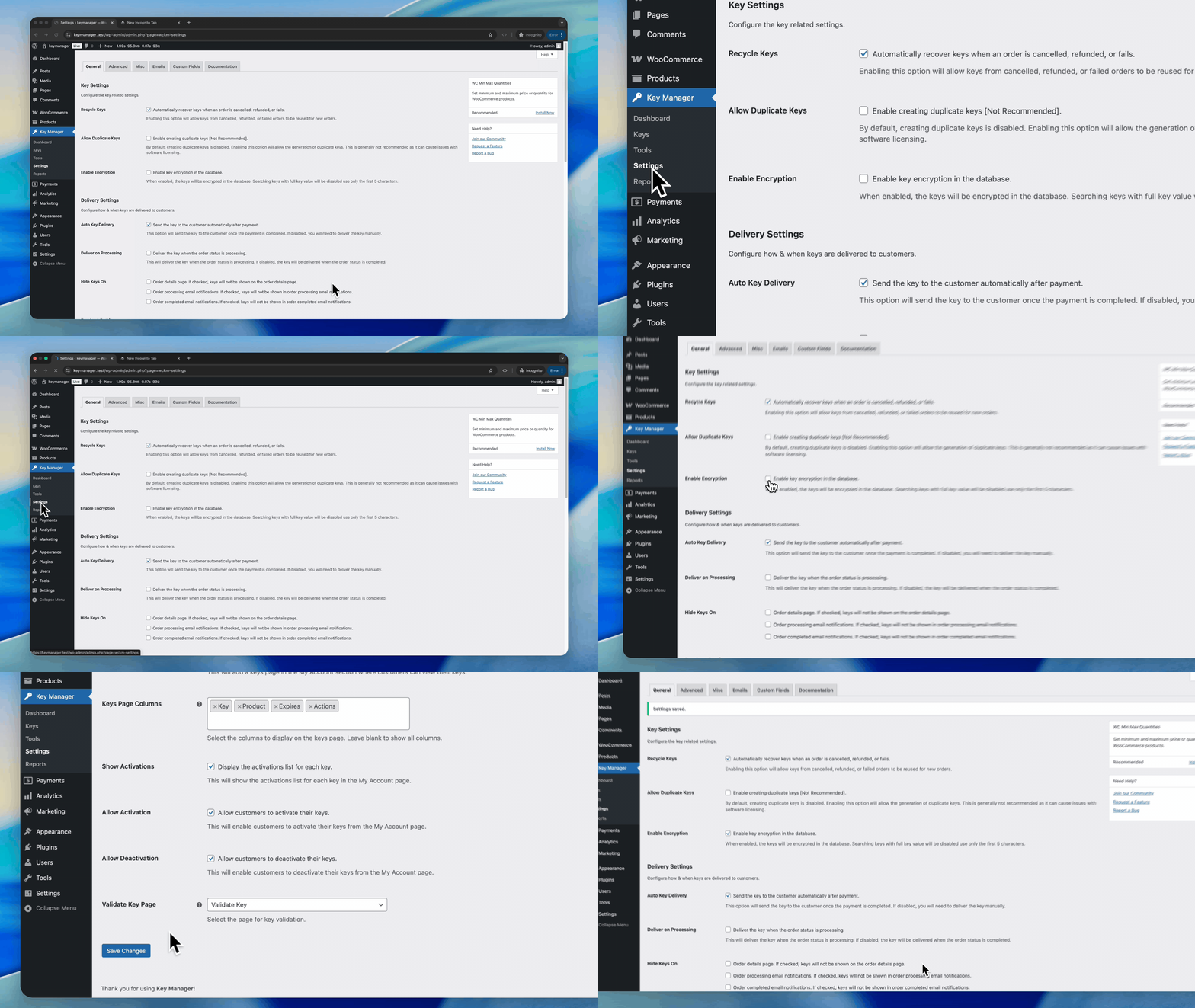
Enabling Encryption
Enable Encryption
- Go to Key Manager > Settings > General
- Check Enable Encryption
- Save changes